
How to set it up in Glide
- Connect the Dexcom G7: in Glide, tap Connect a CGM and enter the wearer's own Dexcom login. Full setup.
- On your phone, go to Settings → Notifications. Turn on Low and set At or below (80 mg/dL by default). Turn on Signal lost.
- Everyone in the family who wants the alert does the same in their own Glide.
- For the night: Settings → Phone Alerts → Add a phone number. Enter a mobile number (outside the US, with its country code) and the code Glide texts you.
- Under Wake-up call, set the hours (10 PM to 8 AM by default). Under When to call, keep Call on signal loss on.
- Tap Add caller to Contacts. In Contacts, open that contact, tap Edit → Ringtone and turn on Emergency Bypass, so the call rings through Silent and Focus.
- Tap Send a test call.
What you see
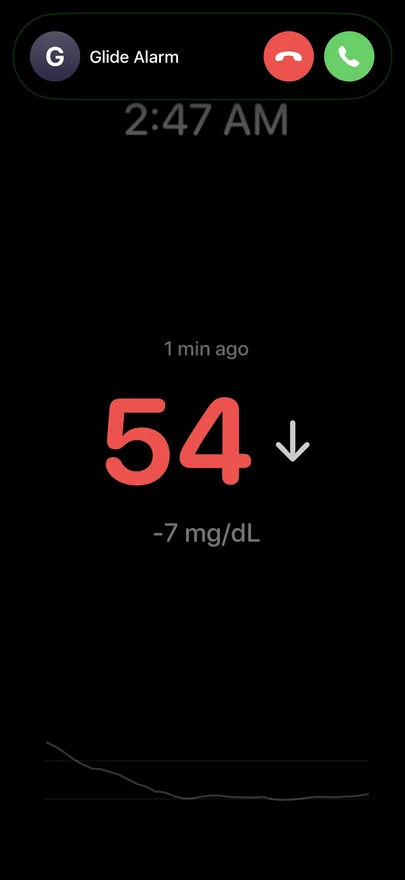
- A low or lost signal alert on each phone where it is turned on.
- At night, a call when the reading is at or below the Call at or below number (70 mg/dL by default) or when the signal is lost.
- Another call every 15 minutes by default (the Snooze setting), until readings come back.
Questions
What does Dexcom say to do?
G7 alerts can be stopped by phone settings such as Screen Time, Low Power Mode, notification settings, or a Quiet Mode in the app. (Dexcom; Dexcom user guide, p. 109)
- Turn on notifications and Critical Alerts for the G7 app in iPhone Settings.
- Set each alert to Sound in the G7 app at Profile > Alerts.
- Turn off Screen Time limits for the app, or add it to Always Allowed.
- Turn off Low Power Mode.
- Make sure you are not using the Silence All or Vibrate Quiet Mode.
What does Glide cost?
Glide is free: readings, the chart, followers, alerts, the nighttime call, the report and the Apple Watch app. Glide Premium ($4.99 a month or $39.99 a year, two weeks free) adds photo carb counting and My Lab's food groups.
More with Glide
Dexcom G7 with Glide
- Apple Watch
- Widgets & Lock Screen
- Report for the doctor
- Alarms in Silent mode
- How many followers
- Signal loss alert for followers
- Signal loss
- Follower app not updating
- Follower not getting alerts
Alarms not sounding on another CGM
Sources, quoted
- Dexcom: “If notifications for the Dexcom G7 app are off, you won't get any alerts.”
- Dexcom: “Go to your iPhone's Settings Tap Dexcom G7 Tap Notifications Turn on Allow Critic”
- Dexcom: “To allow Dexcom G7 alerts to sound during Do Not Disturb: Open your Dexcom G7 app Tap Profile Tap Alerts Choose "Sound" within each alert.”
- Dexcom: “Turn off Downtime and App Limits, or add the Dexcom G7 app to the Always Allowed app list”
- Dexcom: “When Low Power Mode is on, alerts may be delayed.”
- Dexcom user guide, p. 109: “Quiet Modes: Make sure you aren't using Silence All or Vibrate.”
Every quote is checked against its source page before each update of this site; last checked 2026-10-06. Makers change their apps; the source page is the authority when it differs.